Trouble Signing in for the First Time
If you're having trouble logging in to the platform for the first time, this article will walk you through some common issues and how to resolve them.
If this isn't your first time logging in and you're having password issues, select Reset password on the login page or contact your organisation's administrator.
Password issues
It says my username or password is wrong
Start by checking that you've entered your email address exactly as it appears on your platform account.
To check this, open your welcome email and select your name next to "To" at the top of the email. This shows the exact format of the email address that's been registered. For example, the first letter of your name may be capitalised. Ensure that you enter you email address exactly as it is in your welcome email.
It says my password is incorrect
When you first set up your account, you receive a welcome email containing an 8-character temporary password. If you've copied and pasted it into the platform and it's being rejected, something has most likely gone wrong in the copying, usually an extra space.
To check for this:
- Select the eye icon in the password box to make your password visible.
- Count the characters. If you can see more than eight, an extra space has been copied over.
- Select inside the password box and look at where your cursor sits. If it isn't next to the last character, there's a space at the end.
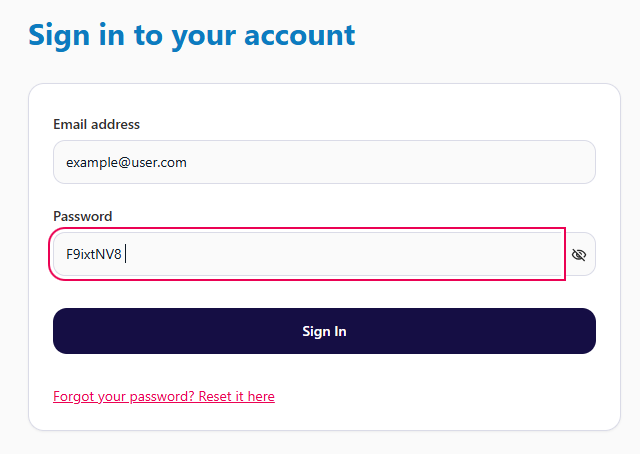
In the example above, the cursor isn't next to the last character, which means there's a space at the end of the password and that is why the password is incorrect.
To fix this, delete the extra space. Alternatively, type the temporary password in manually, using the eye icon to check each character and counting to make sure you've entered eight.
Multi-factor authentication (MFA) issues
I scanned the QR code, but it took me to a different page
If scanning the QR code took you to an unexpected page, such as one asking you to download something or enter payment details, it's most likely been scanned with your phone's camera. The QR code needs to be scanned from within an authenticator app.
To fix this, download an authenticator app from your phone's app store, then scan the QR code in the app. If you need further guidance, please see our article about setting up MFA.
It says my authentication code is wrong
Make sure you're entering the six-digit code shown in your authenticator app, which is generated after you scan the QR code. The six-digit code changes every 30 seconds, if it has timed out please enter the new code shown in your app.
It says my code or session has expired
To keep your account secure, the authentication process on your first login times out if you take a break or it takes a while to complete. If this happens, you'll need to start again:
- If you've already scanned the QR code in your authenticator app, delete that entry to avoid any confusion. Depending on your app, you can either swipe on the entry or select the three dots.
- Close the browser tab.
- Open your welcome email, select the portal link and go through the process again from the beginning.
Try to complete the whole process in one sitting so it doesn't time out again.