How to Guide - Group Consultations
Group consultations allow more than one patient or caller to join the same session and can be started from the same waiting room used for one-to-one calls.
Once everyone is in the call, see Group Consultation - Live Call Features for what else you can do once the call has started.
Which type of group consultation are you running?
A. Multiple callers/patients joining from the waiting room: Starting a group call with several patients/callers at the same time.
B. Adding someone to a consultation already in progress: Inviting a chaperone, interpreter or other third party using a unique consultation link.
C. Adding another agent/clinician: A colleague can join the consultation from their own Medio:Consult account.
Starting a group consultation
A. Multiple patients joining from the waiting room
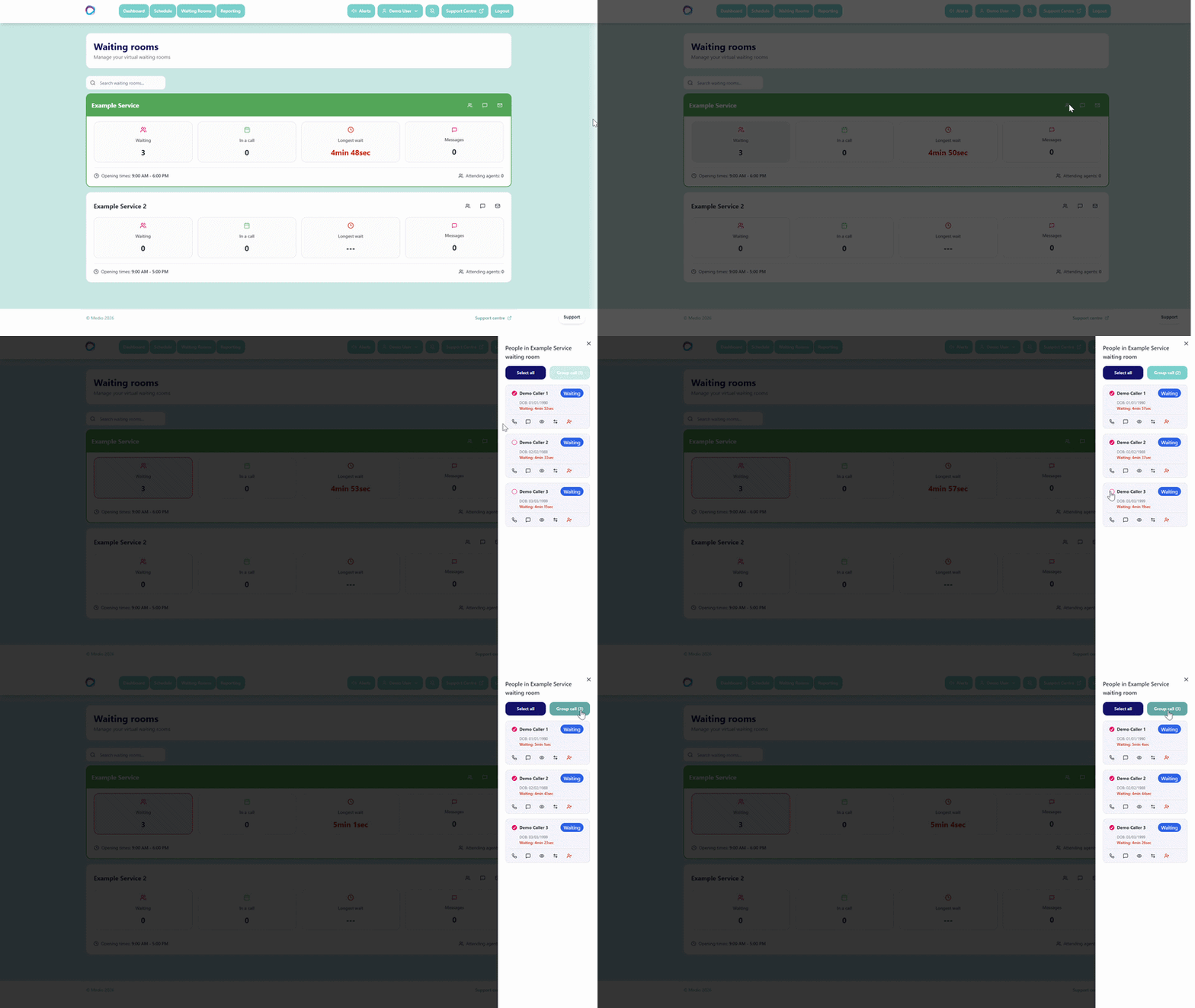
Select the tick box next to each relevant patient/caller, then select Start Group Call. This opens the live consultation in a new window and brings everyone selected into the call together.
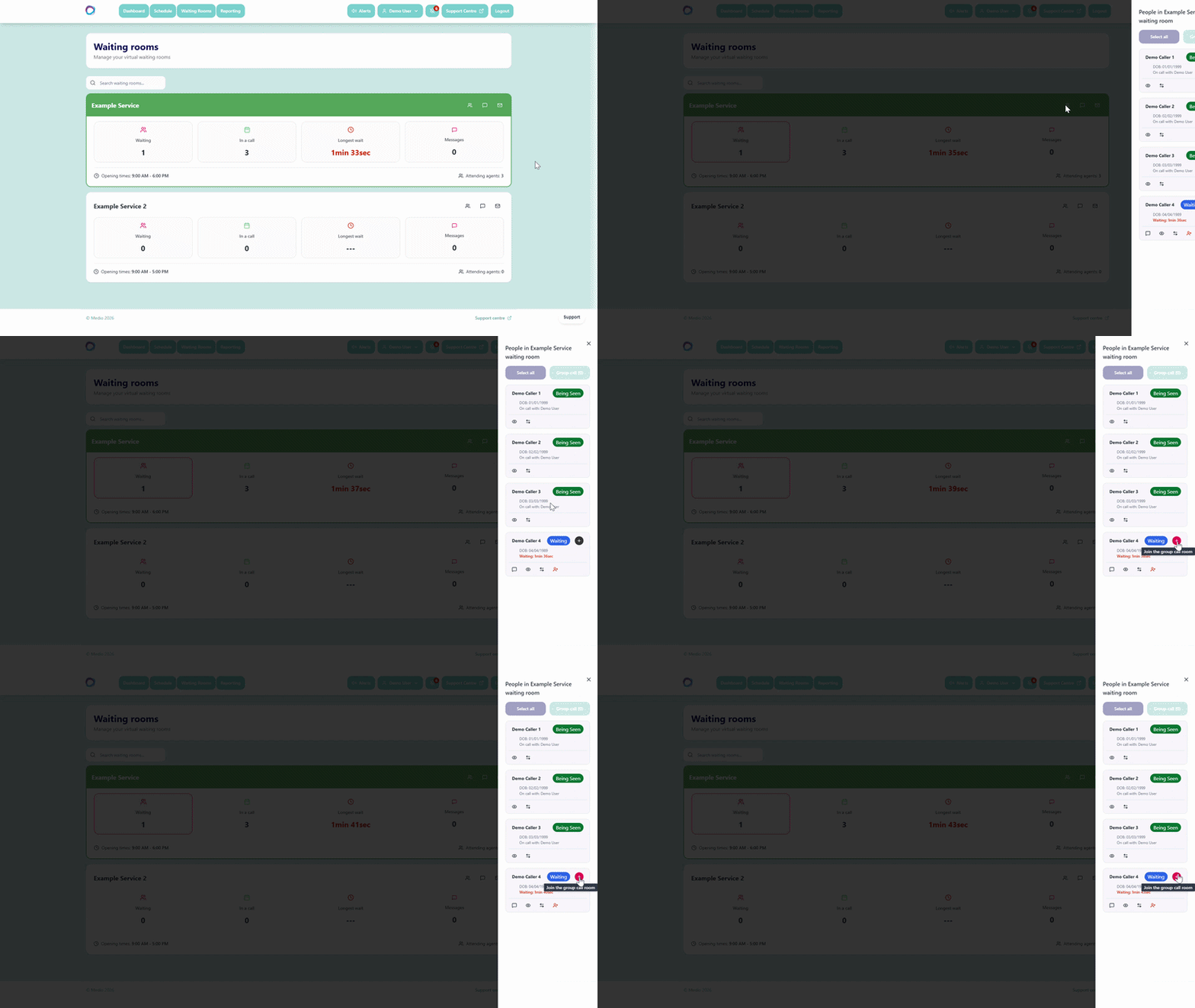
To add someone from the waiting room once the call is already underway, return to the dashboard tab in your browser. A plus icon will appear next to anyone else in the same waiting room as the live consultation. Select this icon to bring them directly into the call.
Important: Planning a group consultation
Start the consultation as a Group Call. If you start a standard one-to-one call, additional patients/callers cannot be added later.
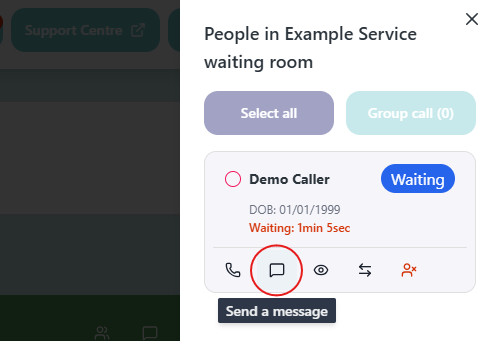
If only some of the group have arrived, don't start the call yet. Use the message icon on their tile to let them know you're waiting for the rest.
B. Adding someone to a consultation already in progress
Use this method if you need to bring someone else into a single consultation, such as a chaperone, interpreter or other third party. Unlike Option A, the person joins using a link unique to that consultation, so they don't need to be in the waiting room.
While in a live consultation, select the share icon in the top-left corner of the window.
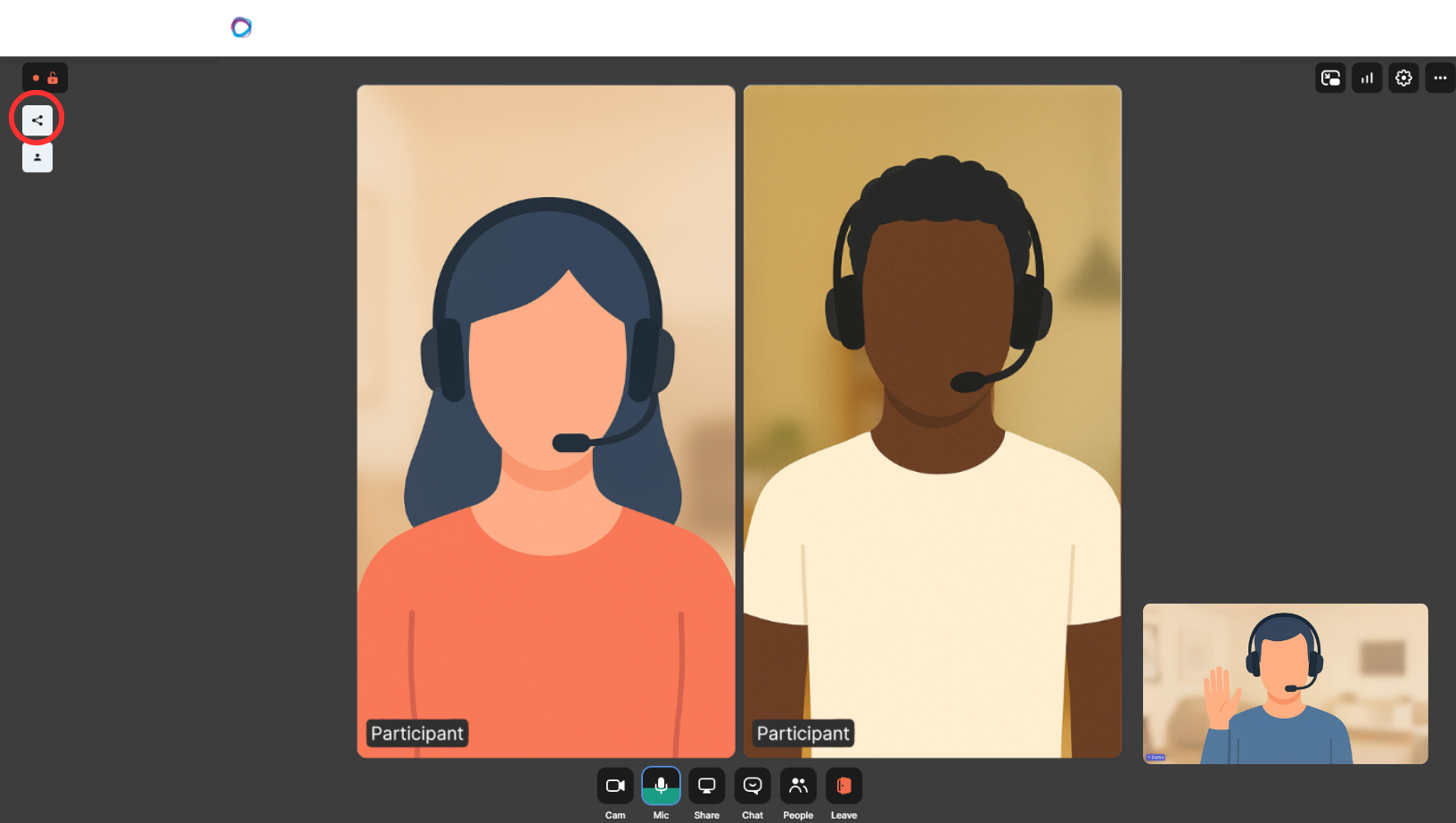
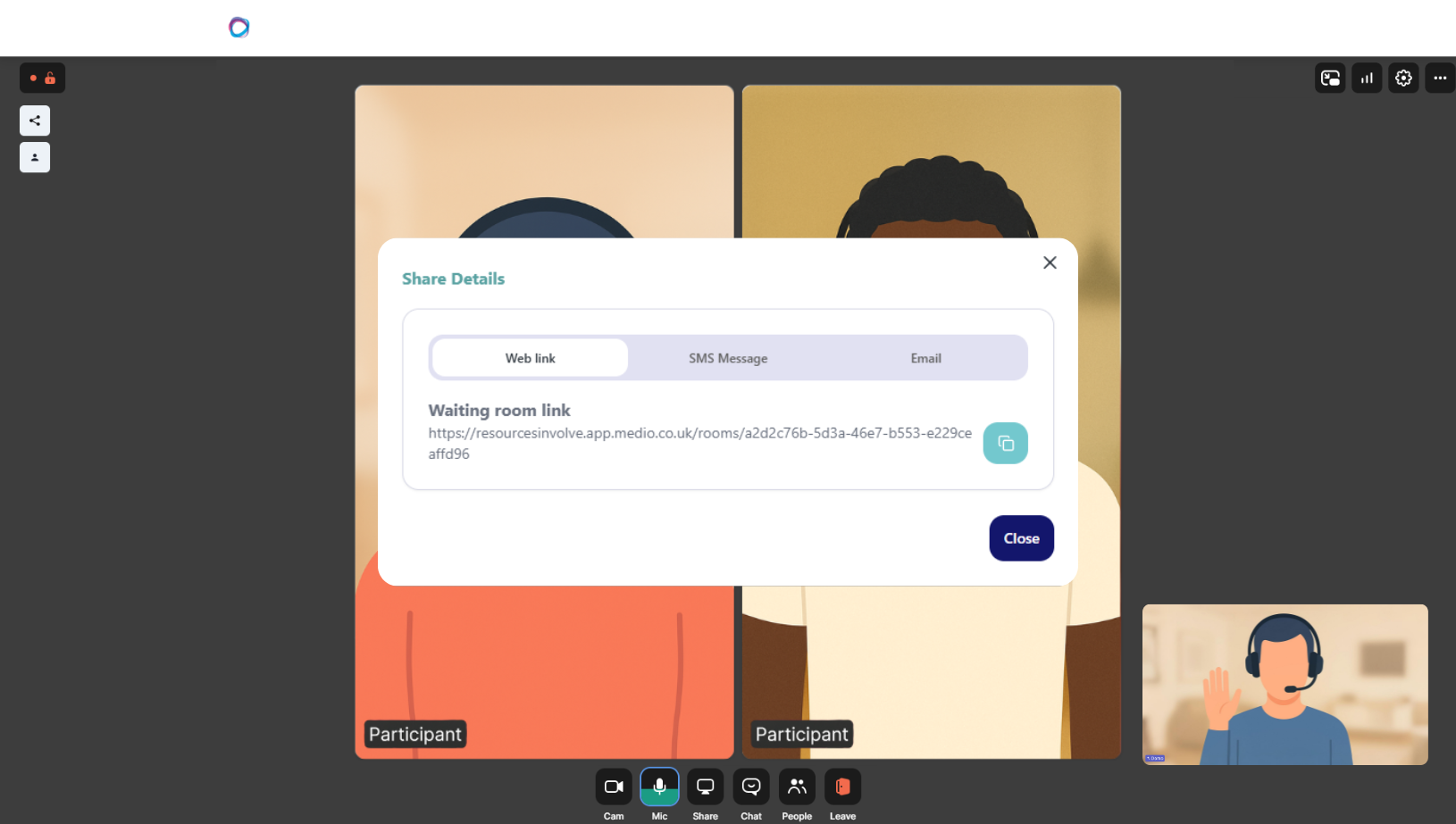
This opens a unique URL for that consultation, this differs from a waiting room link which is static and doesn't change. The link generated via the share icon is unique to that consultation and remains active only for its duration. It can be copied and shared externally, or sent via SMS or email invite from the same window.
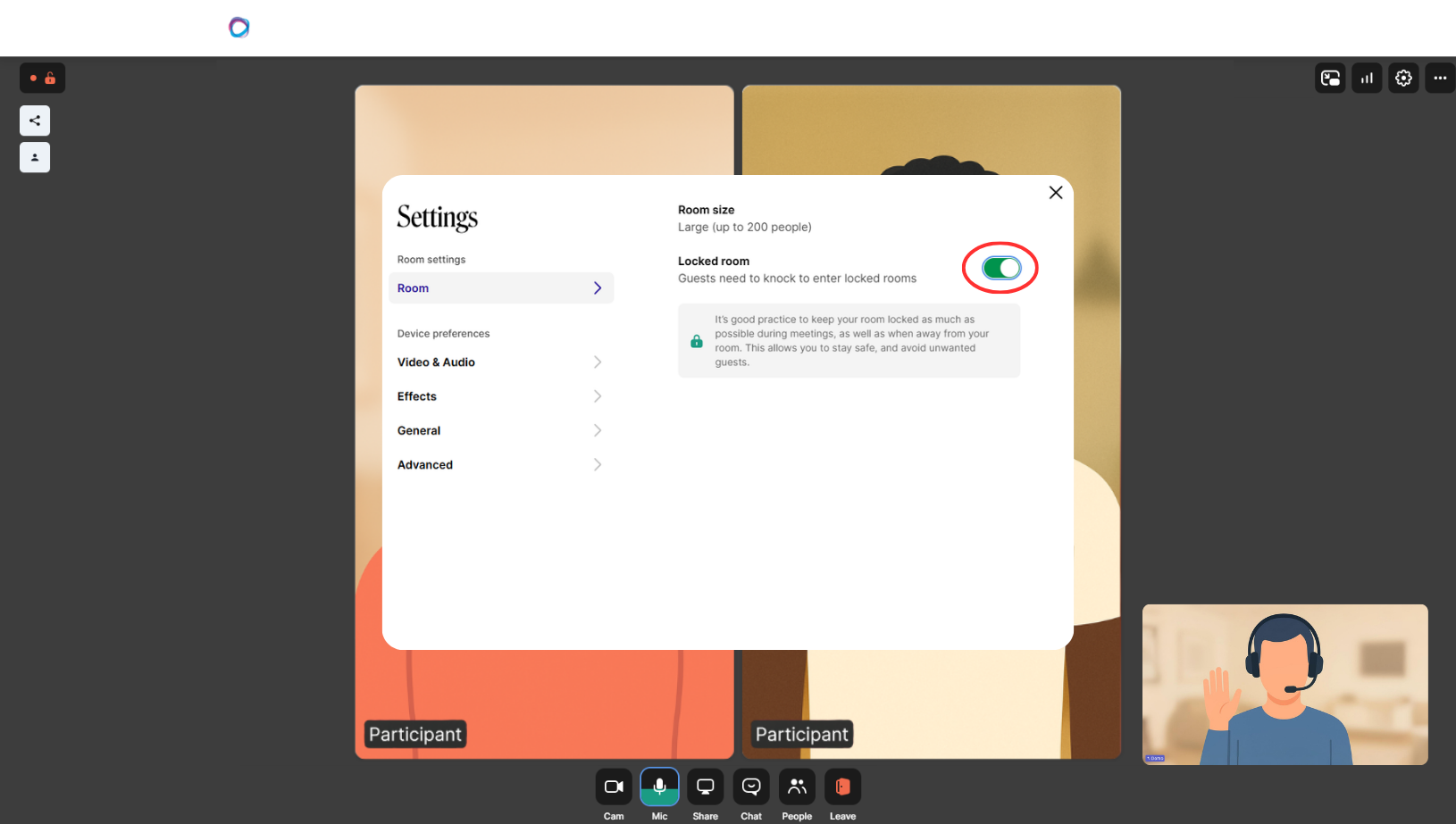
Tip: When inviting third-party guests, we recommend locking the room for security. You can do this in the settings menu. This means anyone joining via the link must enter their first and last name before being admitted.
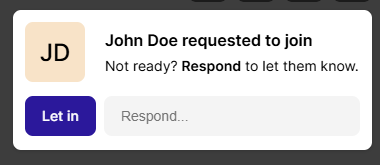
If you're not quite ready to let them in, you can send a short message, for example to confirm you'll be with them shortly, and authorise their entry when ready.
C. Adding another agent/clinician
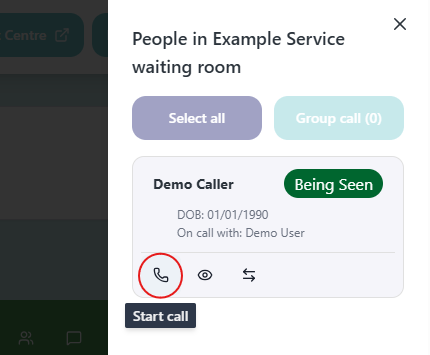
If a colleague wants to join a consultation, start the live call as normal. The colleague can then log into their own account, navigate to the relevant waiting room, and locate the patient/caller, who will be shown as already on a call. Selecting the start call icon brings the colleague directly into the same consultation.