Group Consultation - Live Call Features
Once you're in a group consultation, the following features are available to you. To find out how to start a group consultation, see our support article available here.
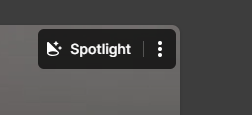
Spotlight a participant
Select a participant to display their screen enlarged for everyone on the call.
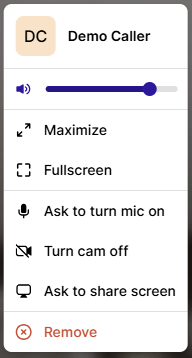
Request camera or microphone
Hover over a participant's tile and select the three dots to send a pop-up request to their device, asking them to enable their camera or microphone.
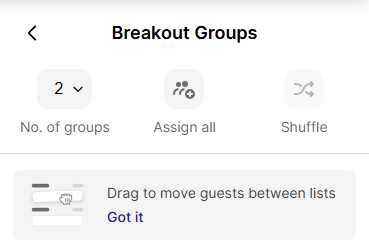
Breakout groups
Hover over the People tab and select Breakout Groups. From here you can choose the number of groups, then assign patients/callers by dragging and dropping them or by selecting Randomise.
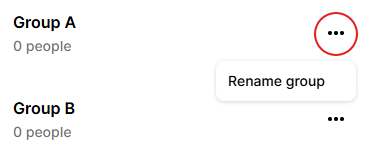
To rename a group, select the three dots next to it and choose Rename.
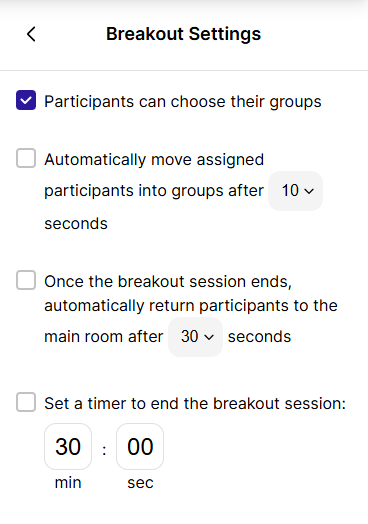
For further settings, select the settings cog. Options include allowing patients/callers to move between groups automatically, or setting breakout groups to end automatically after a fixed duration.
Broadcasting
While patients/callers are in breakout groups, select "Go on stage" to send audio from the main room to all groups at once, for example to make an announcement. A notification confirms when broadcasting is active.